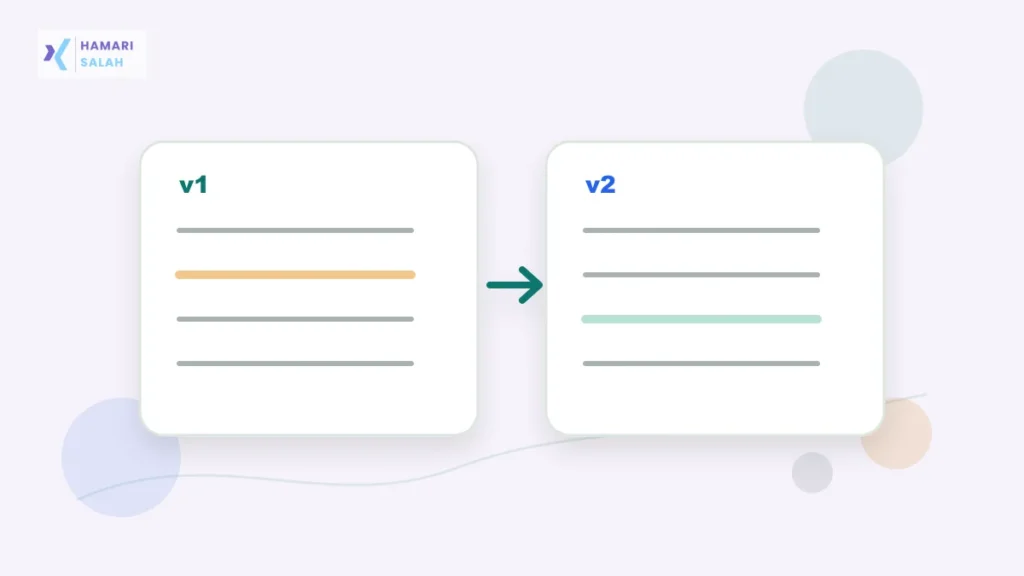
Small document changes can create big workplace problems. A date changes, a number disappears, a condition is removed, or a sentence becomes stronger than intended. Before sending the final copy, compare what changed since the last approved version.
Quick answer
Use the last approved version and the final version. Check dates, numbers, names, commitments, conditions, approvals, and sensitive details before you send anything to a manager, client, HR team, vendor, or customer.
Decide whether the document needs version review
You do not need a formal comparison for every message. Use version review when the text affects money, deadlines, approvals, HR, legal wording, client commitments, policy language, vendor scope, or public announcements.
- Client commitments or delivery dates.
- Pricing, payment, invoice, or refund terms.
- HR, leave, salary, or performance details.
- Project scope, approval wording, or policy updates.
- Vendor responsibilities and support conditions.
Compare the right two versions
The most useful comparison is between the last approved version and the final version you are about to send. Do not compare two random drafts unless you know why. Your question is simple: what changed since approval?
Use Microsoft Word’s built-in Compare feature
If your workplace uses Microsoft Word, use the native document comparison workflow instead of uploading sensitive content to a public website.
- Open Microsoft Word.
- Go to Review.
- Select Compare.
- Choose the original or last approved file.
- Choose the revised or final file.
- Review inserted, deleted, and changed text carefully.
- Save a clean final copy after approvals are confirmed.
Use Google Docs version history
If the document lives in Google Docs, use version history when your organization allows that system for the document type.
- Open the document.
- Go to File.
- Open Version history.
- Select See version history.
- Compare the current version against the last approved version.
- Name important versions so you can find them later.
Do not paste confidential work into public tools
Never paste internal company metrics, employee names, client documents, personal identification details, PAN or Aadhaar details, bank information, salary data, proprietary code, legal notices, contracts, confidential pricing, passwords, or private HR text into public web utilities. Use company-approved systems or native local tools.
Review high-risk details first
Before grammar or formatting, check the details that can create confusion or liability.
| Detail | What to check |
|---|---|
| Dates | Delivery dates, review dates, payment dates, leave dates, return dates |
| Numbers | Amounts, quantities, discounts, invoice values, targets, percentages |
| Names | Client, employee, vendor, project, product, and department names |
| Commitments | Words like approved, final, confirmed, waived, urgent, guaranteed |
| Conditions | Subject to approval, after payment, before launch, pending finance confirmation |
Send a change summary with the final copy
When you ask for approval, do not make your manager find every change manually. Add a short change summary.
Changes made:
- Updated delivery date from [old date] to [new date].
- Removed old discount line after finance review.
- Added client-requested reporting schedule.

Please review the date and discount changes before I send the final email.
Keep a clean final-copy habit
- Save the approved final file with a clear name.
- Keep the approval message or comment.
- Do not create multiple files named final, final2, final-new, and final-latest.
- Send only the approved final version.
For daily communication templates, read how to write an end-of-day status update your manager can scan. If document review is one of many scattered tasks, use the approach in building a daily task tracker from email, WhatsApp, and Teams.
FAQ
Should I use an online document comparison tool?
For workplace documents, use native approved tools such as Microsoft Word Compare, Google Docs version history, or your company’s document system. Avoid public tools for confidential text.
What changes should I check first?
Check dates, numbers, names, commitments, conditions, and approval language before style or grammar.